
Adding a Page or a Post
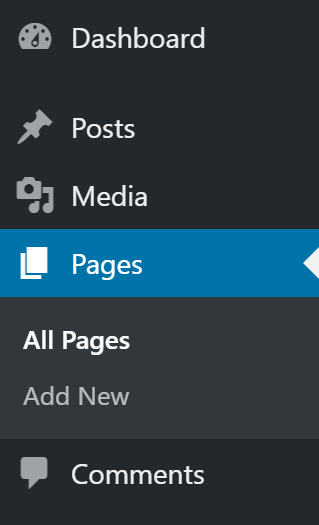
To add a new Page or Post, click the Pages or Posts menu option and then click the Add New link underneath. Another way is to hover your cursor over Pages or Posts and click the Add new link in the fly-out menu.
Editing
To edit a Page, click the Pages menu option and then click the All Pages link underneath or hover your cursor over the Pages menu option and click the All pages link in the fly-out menu.
To edit a Post, click the Posts or Portfolio menu option and then click the All Posts or All Portfolio link underneath or hover your cursor over the Posts or Portfolio menu option and click the All Posts or All Portfolio link in the fly-out menu.
Now you should see a list of all your pages or posts, hover over the page you want to edit and click Edit from the menu that appears below the page’s or post’s title. You will be taken to the page or post in edit mode so you can make the necessary updates.
There’s one more option for getting to edit mode, but you need to be logged in for this menu to display. If the page or post is published and showing on your site then you can navigate to the page or post and click the Edit Page (Edit Post) link that is located in the menu bar at the top of your screen.

We recommend hovering over all the menu links to familiarize yourself with them. You’ll notice when you hover over + New that you can add a new page or post as well as upload media. WordPress provides many ways to do the same task and the best way is the one you like!
Adding Media
Using different types of media to represent your artifacts is a great way to make your portfolio dynamic and keep your audience engaged. Text-heavy pages can get cumbersome regardless of how you arrange it. Media can help with breaking up content or replacing text all together. Consider how you can “show what you know” rather than just simply telling.
To add media, first, place your cursor where you want your media to appear. Then, click on the “Add Media” button.

Select the item you wish to insert or select the “Upload files” tab to upload your media. Once you have selected or uploaded the image you want to add, you will see a checkbox next to the thumbnail confirming your selection, and see information about it displayed in the Attachment Details pane on the right hand side of the media uploader interface. Edit this according to your preferences, then click the blue “Insert” button.

Setting a Feature Image
When editing a page or post, scroll down the page and on the right hand side look for “Feature Image”. Click on “Set feature image” to upload or select an image. Don’t forget to click “Update” to save your changes!
Media Tips
Media can also be an alternative to simply hyperlinking all your artifacts. Instead of sending your audience off to another site or tab, embedding media can keep your audience on a page. Some options can include:
Photos or Videos
You do not need to create everything from scratch. There are many sources that provide professional-looking, royalty-free images and video.
- Unsplash https://unsplash.com/
- Pexels https://www.pexels.com/
- Wikimedia Commons https://commons.wikimedia.org/wiki/Main_Page
When it comes to creating videos, there is a lot you can do with your smartphone’s camera. If you need to record your screen, but don’t have screen capturing software, then consider using a web-conferencing tool (like Zoom), and record your screen share. As for screen capturing tools, there are many freemium web-based ones or Chrome extensions that are very user-friendly. Just do a Google search and find one that works for you.
Infographics
If you are looking to create something visual, but still informative, infographics can do just that. Here are a few free (or freemium) web-based graphic design tools that are very user-friendly:
- Canva http://www.canva.com
- Pikochart https://piktochart.com
Podcasts
Maybe some of your work might have more impact spoken or heard. Whatever the reason, don’t rule out audio as a form of media. To record, you can use the voice memo app on a smartphone and upload the mp3 file directly to WordPress. Alternatively, you can use a web tool like Soundcloud to record, edit and save. Soundcloud easily embeds into WordPress by simply copying and pasting the URL on to your page/post.
Embedding PDFs
Since papers are common items to artifact, embedding PDFs right into your website is a good option in comparison to linking them, which requires the audience to either open it in a new tab or download it. We have the PDF Embedder plugin which you can use. To activate the plugin, from your dashboard click the Plugins link. Next, search for pdf in the Search for installed plugins… text box and finally click Activate for the PDF Embedder plugin. When you upload your PDF via “Add Media” your PDF will be automatically embedded on your page.
Formatting Lists
When we want to add text below a bullet without adding a new bullet, you will notice that if you hit the enter key then the backspace key, you only to get frustrated that you are back on the line you just left! Here is a handy tip: click Shift+Enter to start a new line without adding a bullet, and when your ready for another line with a bullet click Enter (as normal).
- This is my first bullet (click Shift+Enter)
this is my line of text without a bullet (click Enter) - This is my second bullet
DON’T FORGET!
After you have added content and before you leave the page, do not forget to click the blue
“Update” button to save your work.
